Loading
Loading
Loading
When it comes to attracting attendees to your event, it is important that the event description introduces relevant content to the attendees. It is also important that the event description is visually appealing to the potential attendee.
In this guide we describe how you work with the look and layout of the text in order to create visual appeal.
You can use this standard layout:
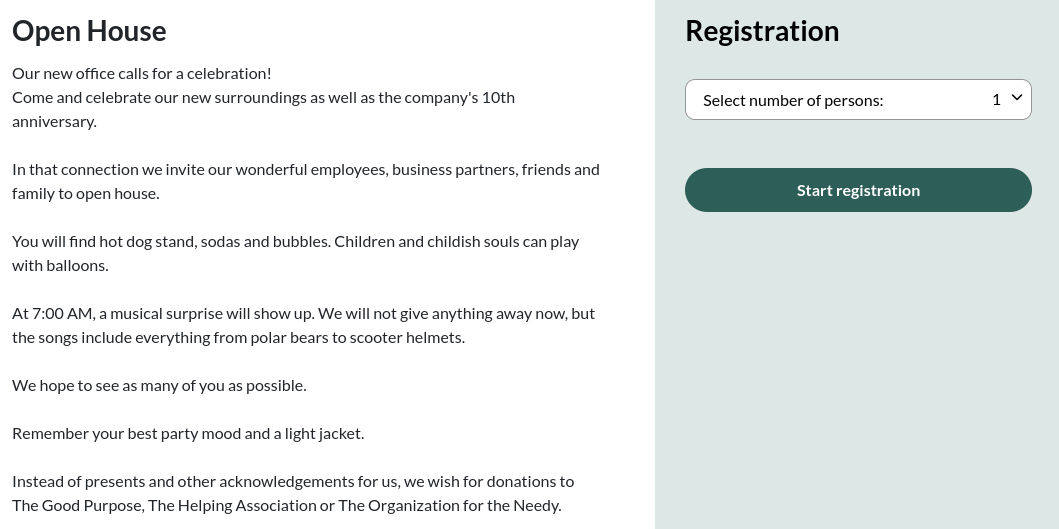
But you can also introduce the event description in this way:
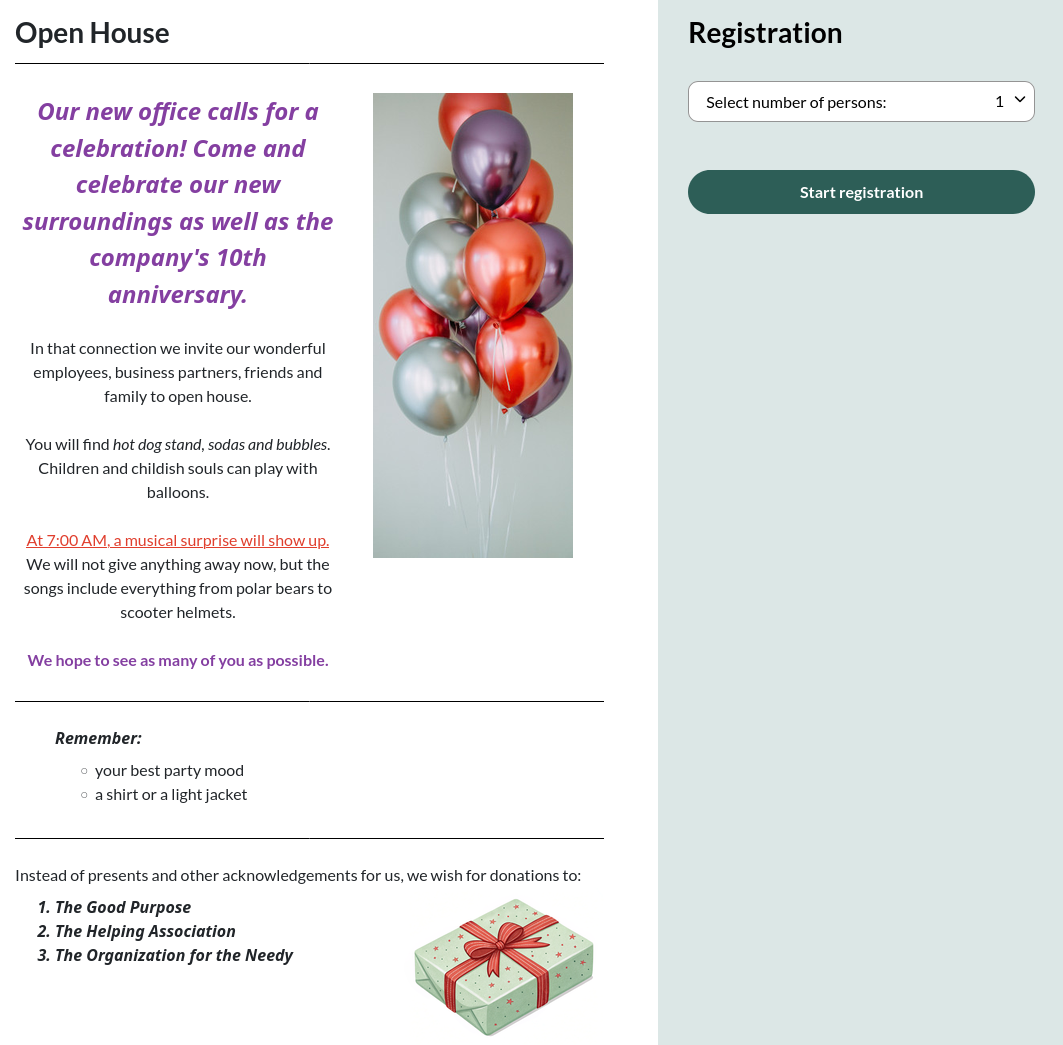
The text is the same, but here we format the event description and the text by use of:
Furthermore, we use images and tables in the set-up.
Find the event in the event list and start editing by clicking the yellow icon with the pencil.

Insert or write the text and mark the part you wish to adjust.
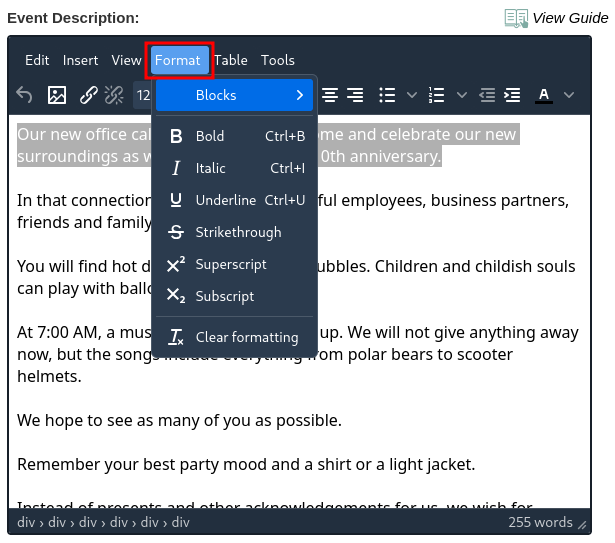
Use the tool bar or choose Format to format the look of the text e.g. bold, italic or underlined.
Notice: If you copy text directly from a text editing program such as Word you may experience hidden formatting of the text which may cause difficulties. You can avoid this by:
 |
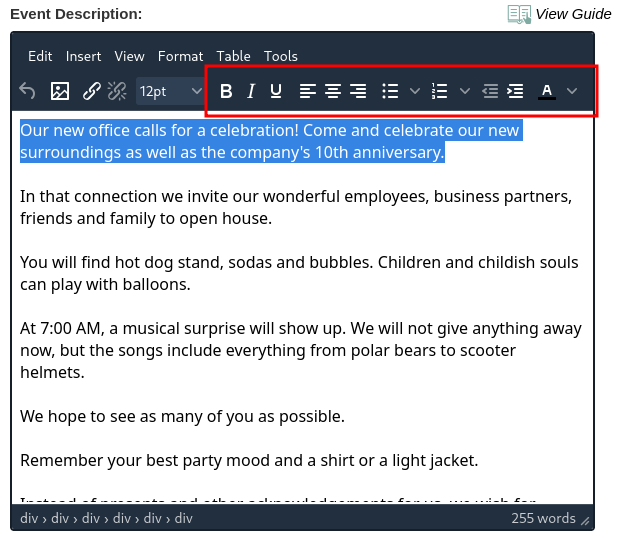 |
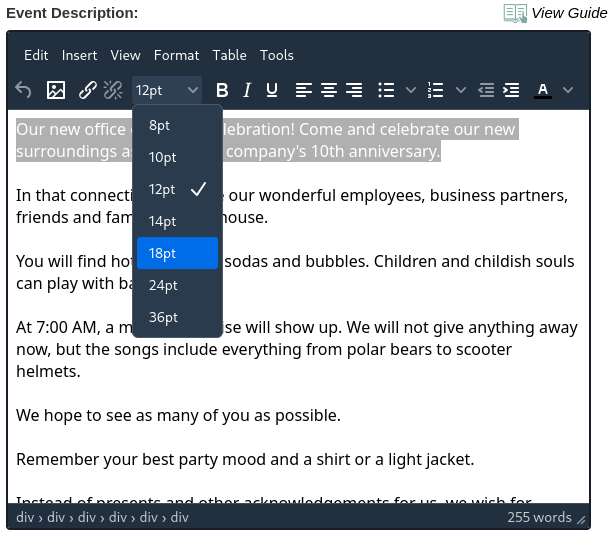
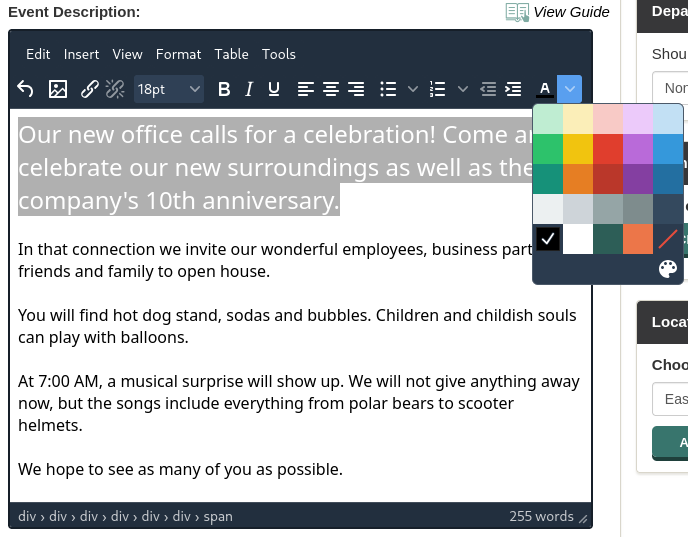
By use of the toolbar it is possible to edit the font size and color.
 |
 |
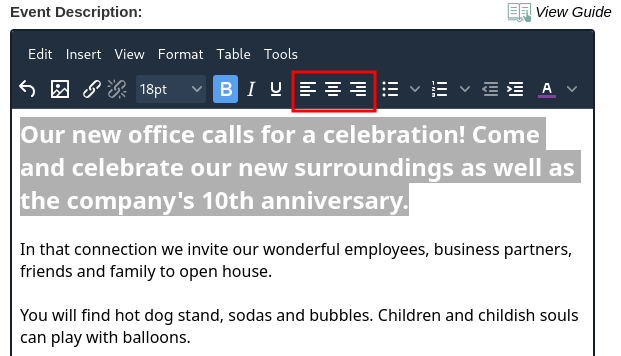
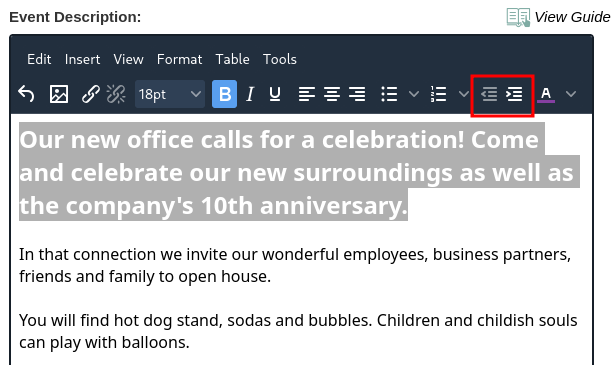
You can align the text to the left, middle or the right, and you can increase and decrease the indent.
 |
 |
You can also make a list with:
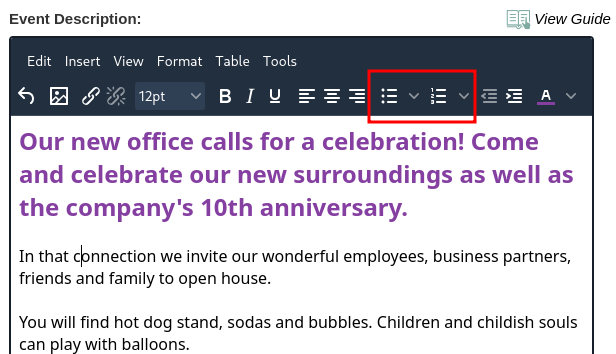
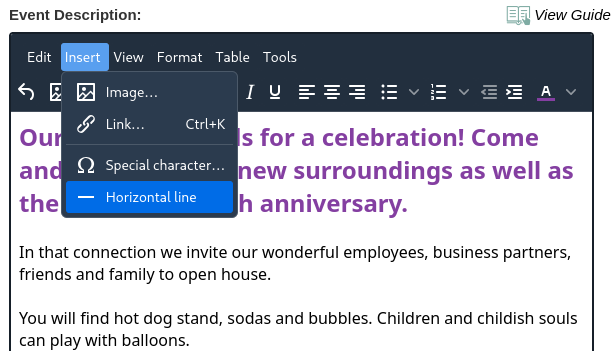
You can divide the text visually with a horizontal line.
You can insert images or use tables in your event description.
We have gathered a list of tips on how to get more attendees to your events by focusing on your event description. You will find the tips here.
We've made a series of videos showing you how to use EasySignup.
Watch introductory videosWhether you are a participant or an organizer, some of the questions you might have about the IT-system are answered here.
Read the answers
Mette Jellesen and Jacob Thomsen
Support and Communication