Download and customize the event's bookkeeping statement

This guide shows how to download the bookkeeping statement for an event. The bookkeeping statement is part of the documentation you can download in EasySignup for bookkeeping.

You can learn more about how to record revenue when using EasySignup here.
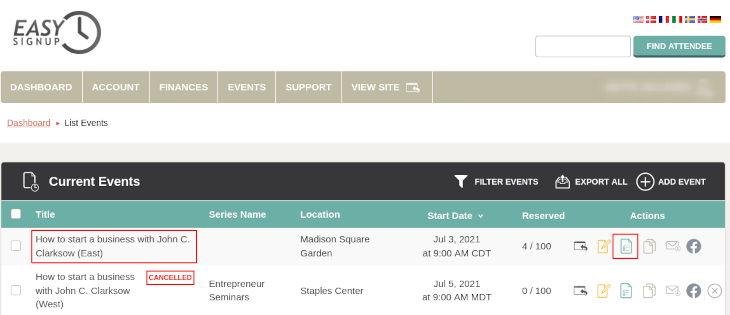
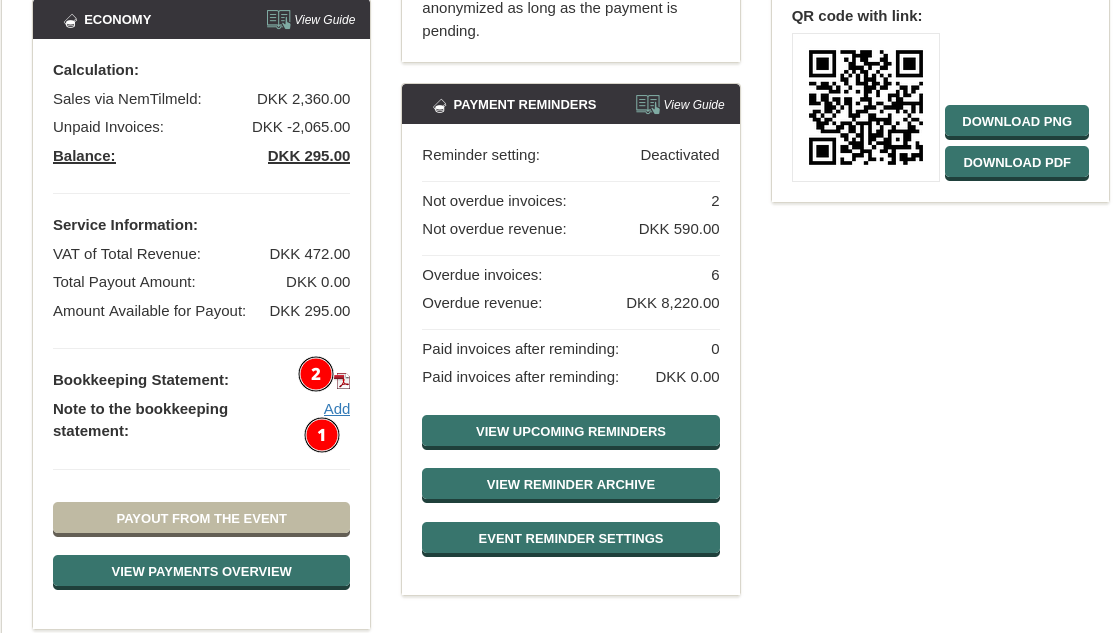
  • You can download the bookkeeping statement on the event report page, which you can access by clicking on the event title or the green icon in the liste of events.
  • You can download and customize the bookkeeping statement in the "Economy" section. You can choose to add a note to the bookkeeping statement before downloading (1). Click the PDF icon to download the file (2).
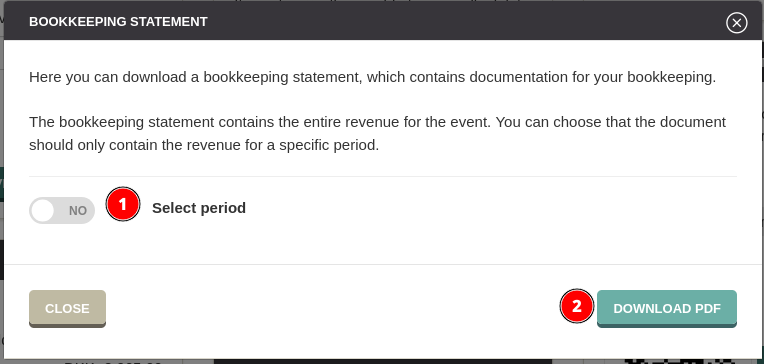
  • The bookkeeping statement contains the entire revenue for the event. You can choose to have the document only contain the revenue for a specific period (1). Press "Download PDF" to download the file (2).
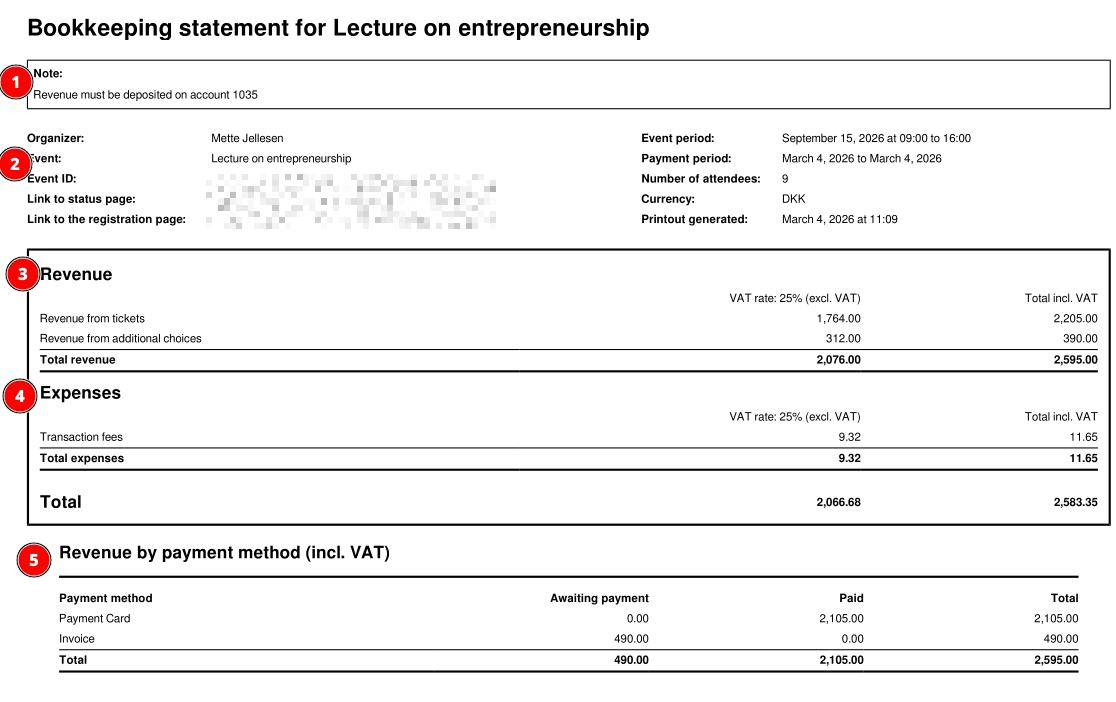
  • The bookkeeping statement contains, among other things:
    1. The note that you can choose to add.
    2. General information about the event and the organizer, as well as the time when the file was generated.
    3. An income overview of the event, i.e. ticket sales, additional choices and any transaction fees, which has been forwarded to the payer.
    4. An overview of expenses, i.e. transaction fees if your attendees have paid by payment card or MobilePay.

      Note for sponsored accounts: The 2% + VAT for using EasySignup is calculated based on the revenue at the time the bookkeeping statement is generated. The total cost is therefore not final until the entire revenue has been paid out.
    5. An overview of how the revenue has been paid out. It includes all the payment methods used and the status of invoices if you use these payment methods.

      Any withdrawals or deposits will be displayed in a corresponding table named "Transfers".
    6. A list of registrations and refunds with status and information. By default, it is without names of the payers. The next section describes how to change this.

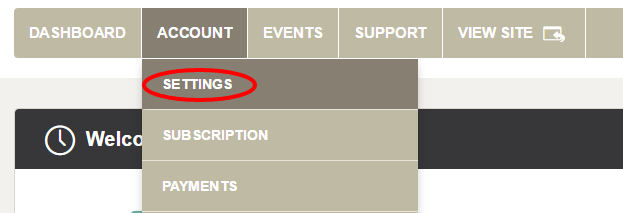
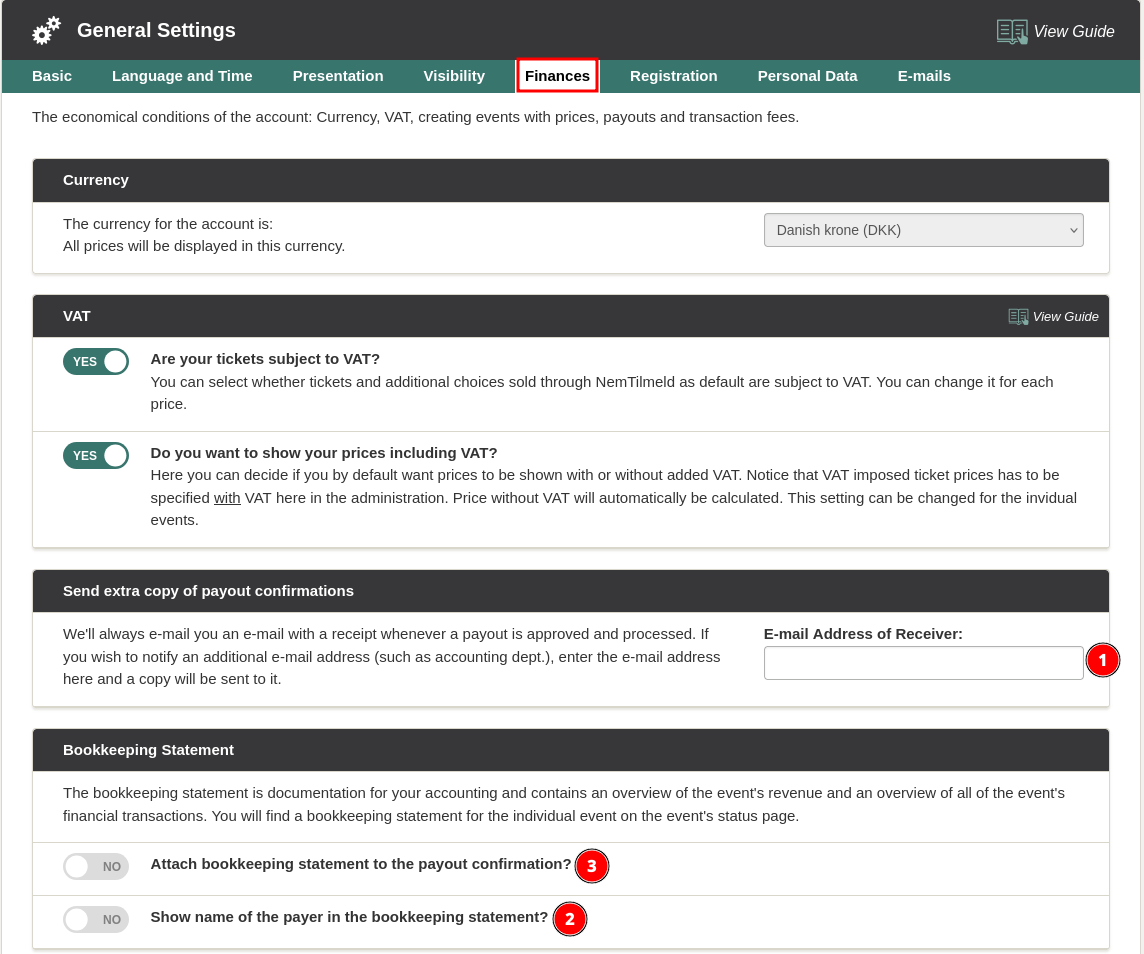
  • If the names of the payers should appear on the bookkeeping statement, an administrator can change this under Account->Settings.
  • Find the "Finances" tab, where you can choose to show the names of the payers in the bookkeeping statement (2). It is also possible to choose to attach the bookkeeping statement to the receipts that EasySignup sends when you pay out from the events (3).


    Also note that you can add an additional recipient of receipts for pay outs, who will then also receive the bookkeeping statement (1).

    Remember to save in the bottom right corner when you change anything
Introductory Videos

We've made a series of videos showing you how to use EasySignup.

Watch introductory videos

Frequently Asked Questions

Whether you are a participant or an organizer, some of the questions you might have about the IT-system are answered here.

Read the answers

Support - weekdays
9:00 AM - 4:00 PM CET

Mette Jellesen and Jacob Thomsen
Support and Communication

support@easysignup.com

Get in touch

You must fill a name.
You entered an incomplete or invalid email.
You must fill a subject for the message.
You must fill out a message.

Organizations also using EasySignup