Loading
Loading
Loading
This guide shows how to get documentation for your accounting, in order to record the revenue for your event with one single attachment, instead of having to record the individual registrations.

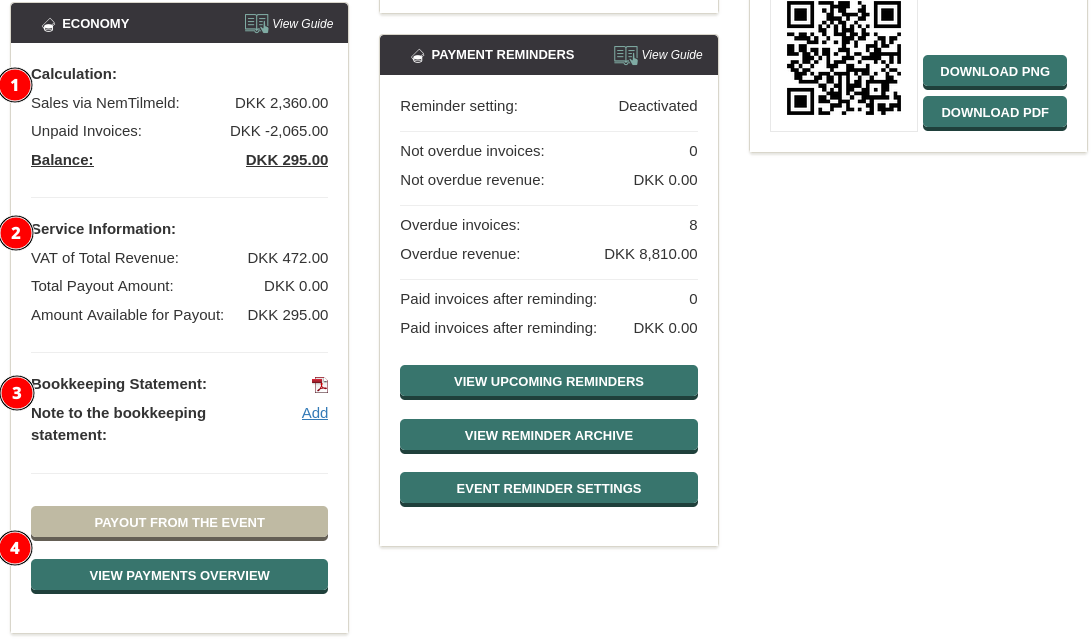
On the status page of the event you will find an overview of the "Economy" for the event. The overview of the "Economy" is at the left below "Event status" and "Event note".
The overview shows an calculation for the payout (1), service information (2) among other things total payout amount and a bookkeeping statement (3). In addition there are various shortcut buttons, e.g. for a payment overview and to perform payout for the event (4).
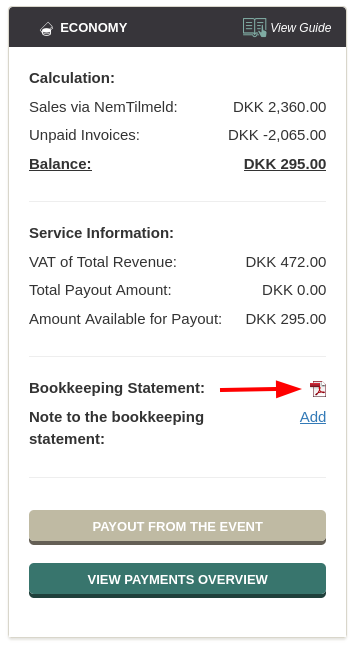
You can download the bookkeeping statement to have it as documentation, e.g. if you need to upload it in your financial system. Click on the pdf icon to download the bookkeeping statement.
The bookkeeping statement contains, among other things:
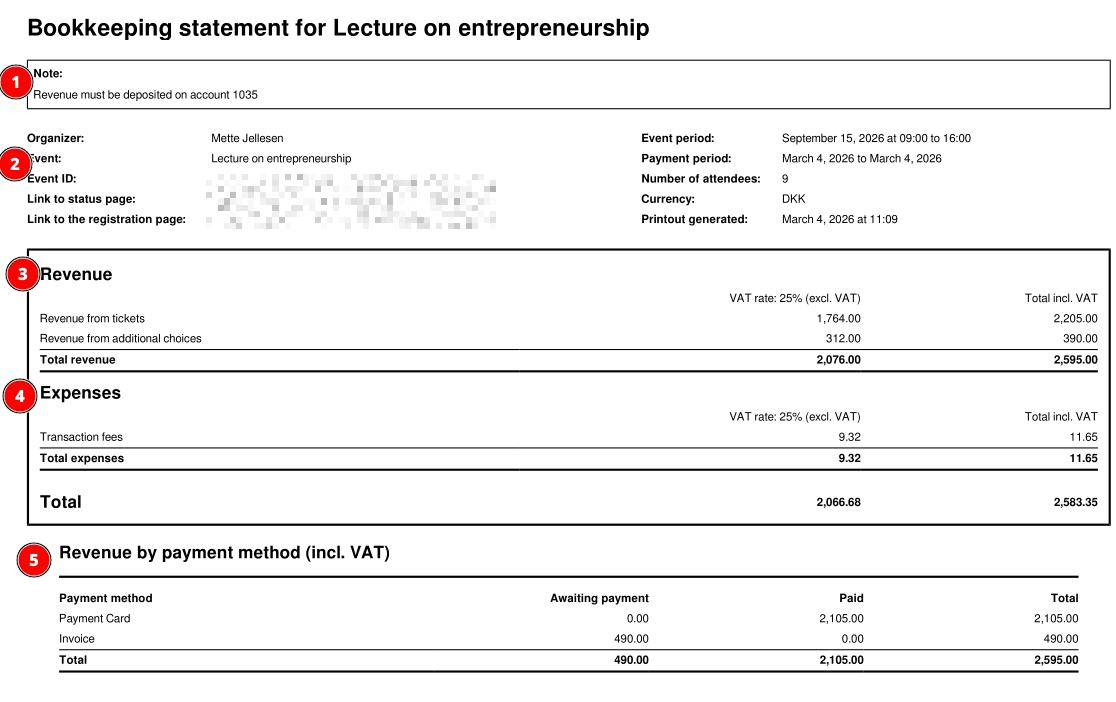

The bookkeeping statement thus contains documentation for your accounting in one attachment.
The revenue from the event can be transferred to your own account by an "Administrator" or "Financially responsible" user on the account. See how in this guide.
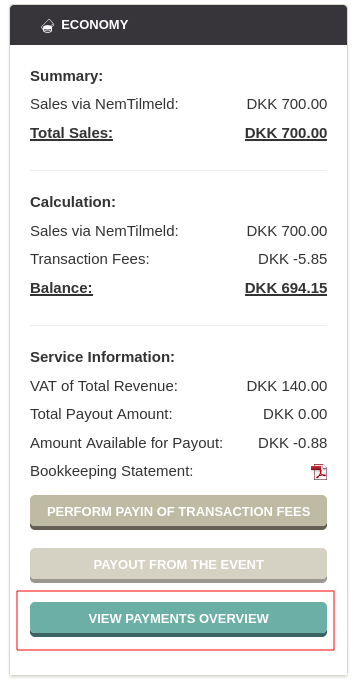
The system automatically sends a payment specification to the user who has requested the payout. You can also find the payout specification by clicking "View payments overview", after which you can view and download documentation for the payout.
We've made a series of videos showing you how to use EasySignup.
Watch introductory videosWhether you are a participant or an organizer, some of the questions you might have about the IT-system are answered here.
Read the answers
Mette Jellesen and Jacob Thomsen
Support and Communication