Loading
Loading
Loading
You need to communicate last minute updates or other important information about your event? No worries. You can send messages to attendees before, under and after your event using EasySignup.
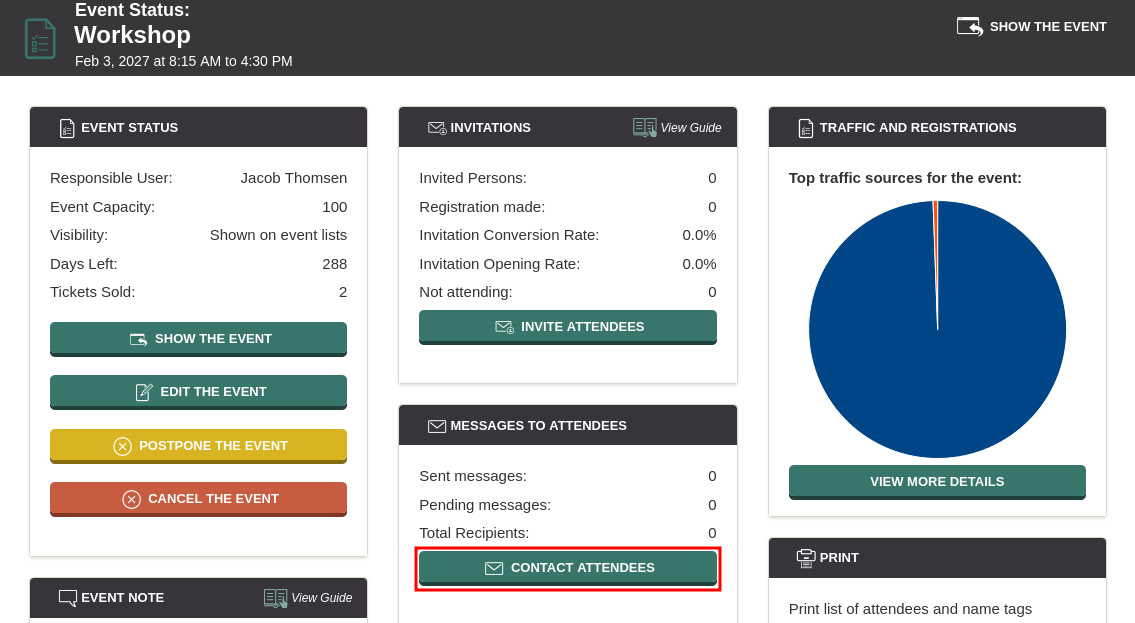
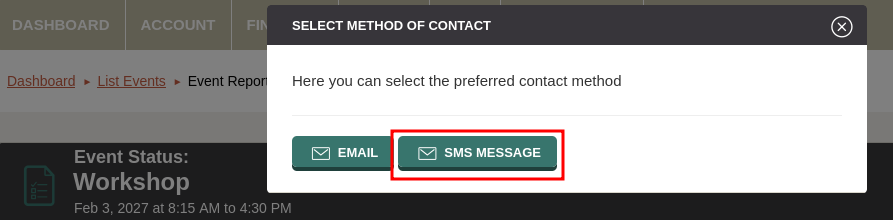
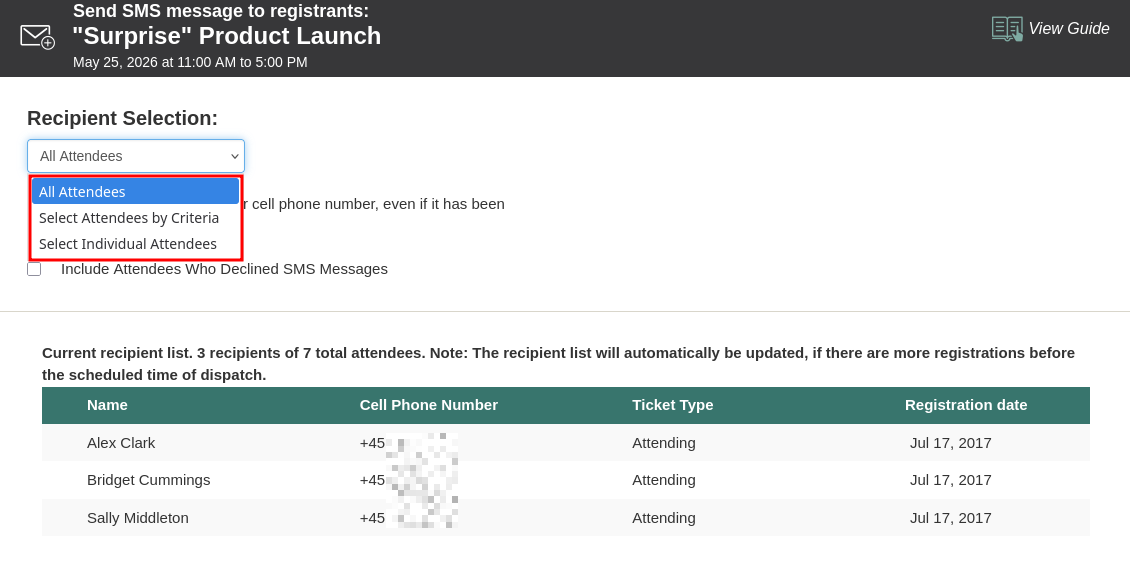
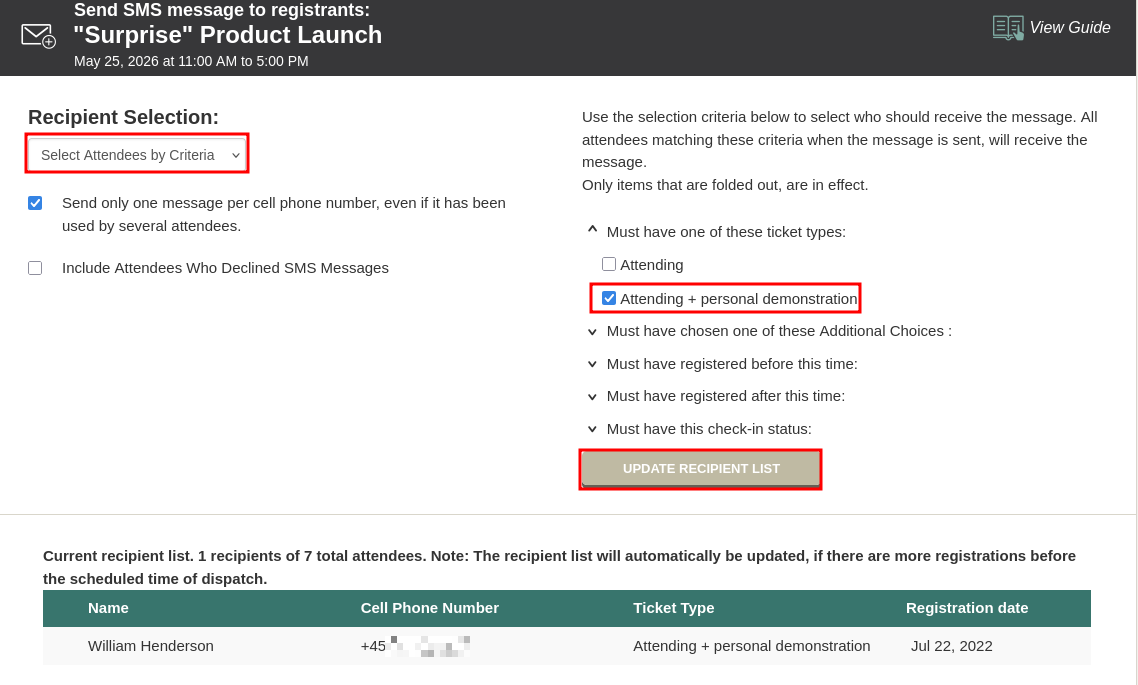
Messages are sent via the event status page.
Note: Text messaging involves a fee for the organizer depending on amount of messages, numbers of characters and which country the attendee is located in. You can buy SMS credits under Account->SMS Status.
Furthermore, you need to collect the attendee information "Cell Phone number" from people registering your event in order to send text messages to the attendees. "Cell Phone Number" is already available in the list of attendee information fields - so you don't need to create it yourself.

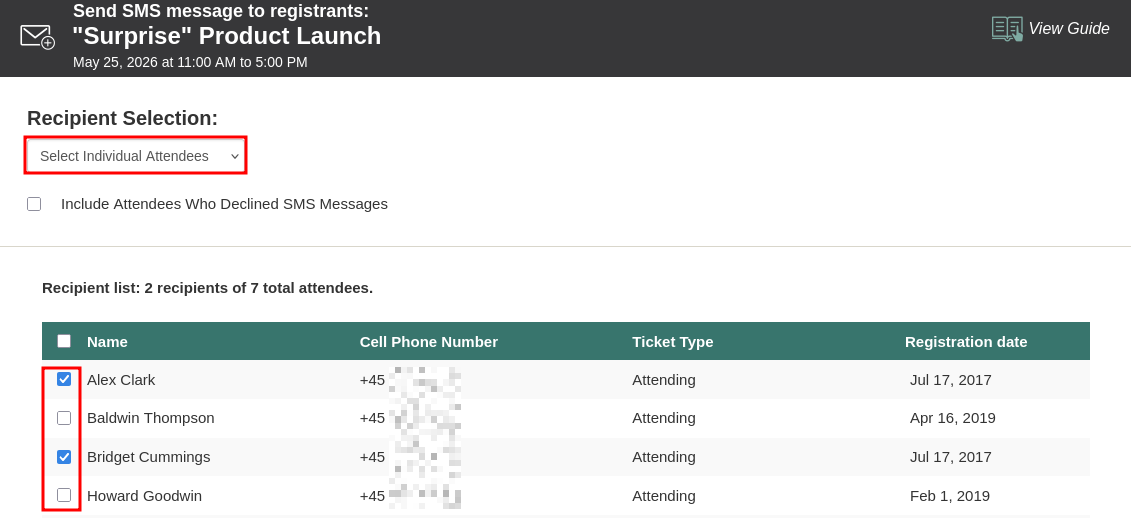
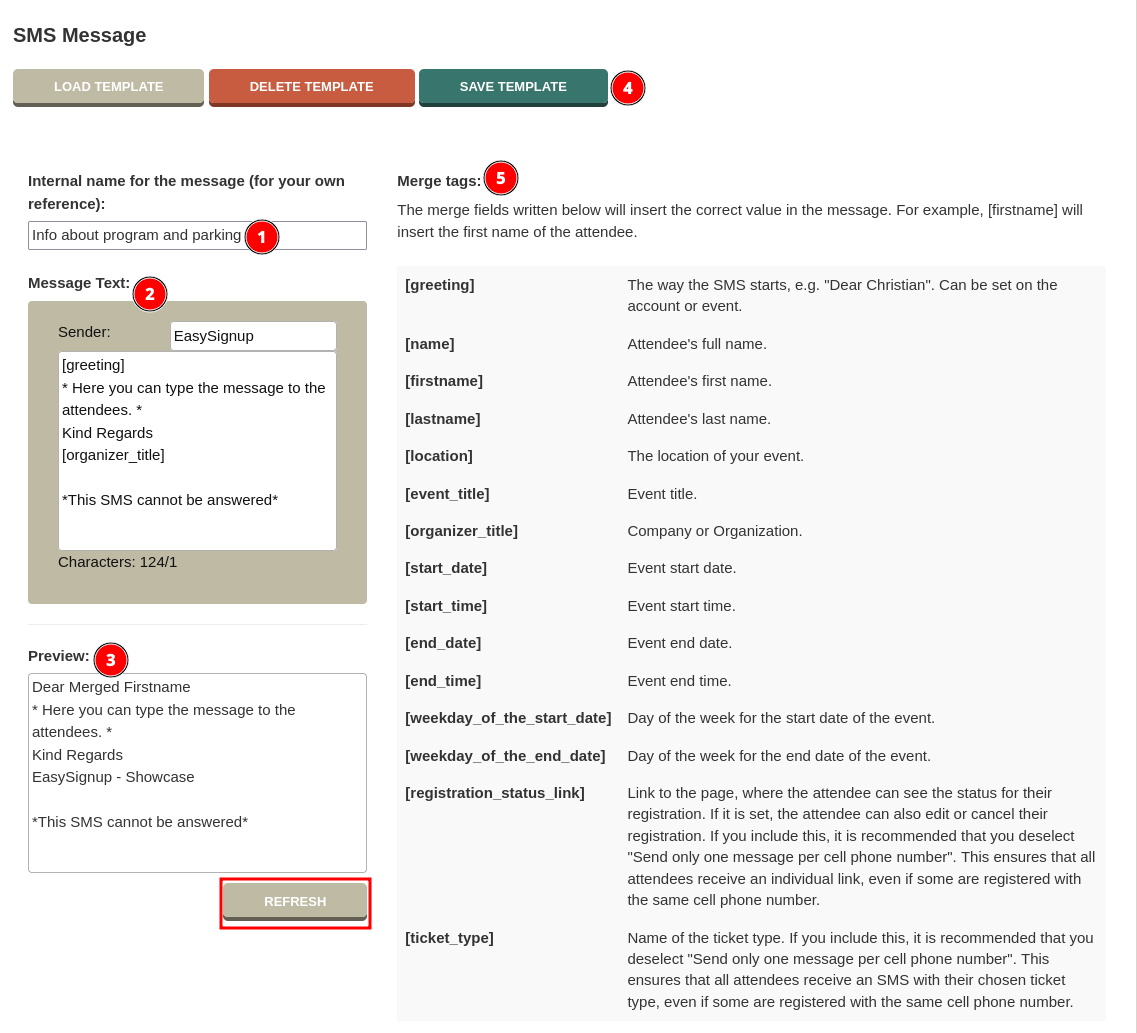
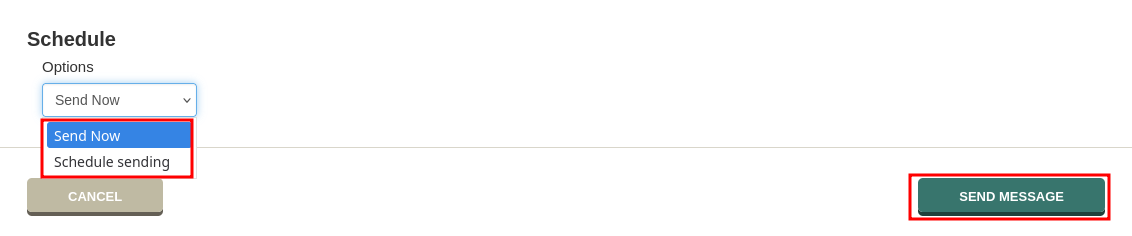
See list of sent and scheduled messages
You can see a list of all event messages via the event status page. Once you've sent or scheduled messages the button is named "View and Send Messages".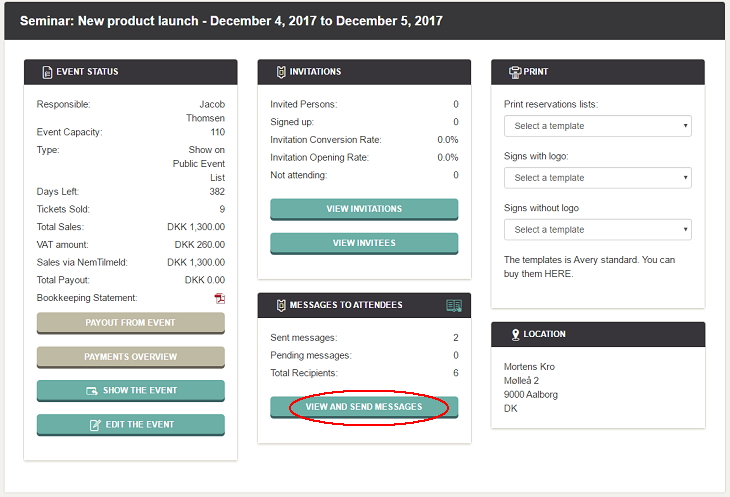
Here you can see a list of sent and scheduled messages for the event. Each message has two icons. An "eye", where you can see the message text and an "address book", where you can see the receivers of the message.
You can also edit and delete scheduled messages. Click on the "pencil" to edit a scheduled message and the "x" to delete it.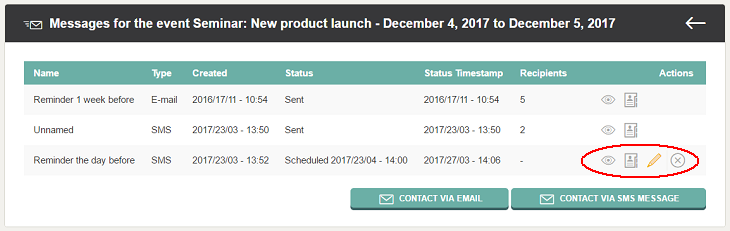
You can also create and send new messages from this page.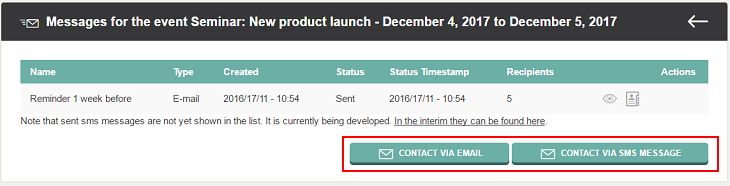
Note: You can see a overview over your text messages under Account->SMS Status in the top of the dashboard.
You can also send e-mails to the attendees. See how here
We've made a series of videos showing you how to use EasySignup.
Watch introductory videosWhether you are a participant or an organizer, some of the questions you might have about the IT-system are answered here.
Read the answers
Mette Jellesen and Jacob Thomsen
Support and Communication