Loading
Loading
Loading
If several persons need to use EasySignup to administrate your events, you have the opportunity to create a personal user for everyone you want to give access to your EasySignup account.
The individual user's access can be customized in several ways, so that the user does not have access to more functions and more data than necessary.
This guide will explain:
The advantages of personal user access are among others:
How to use "departments"
By default, users with rights to view and edit events can view all created events.
This is not always desirable - both for internal work reasons and regarding GDPR.
If you need to group which events users can see and work with, you can use departments. Then you can only see and work with events you are responsible for or which are part of the department you have access to.
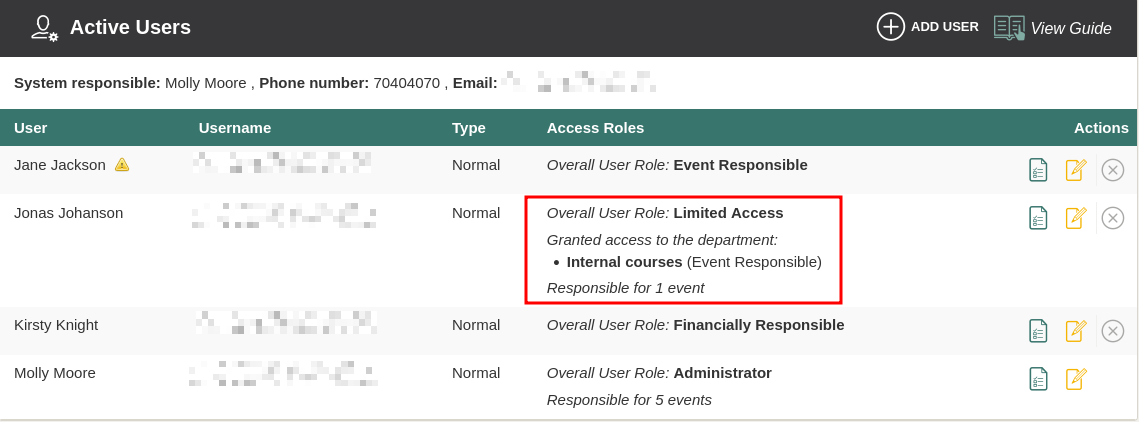
In practical terms, the user must have the user role "Limited Access" overall and a user role with rights in the department, e.g. "Event responsible". See example in the picture below.
When you group events into departments, it only affects which events a user can see and work with in the administration.
The lists of events where attendees register will not be affected by the division into departments.
Which access roles can a user have?
Users must be assigned access roles in order to access EasySignup. The set of access roles are hierarchical, i.e. users on one level have the same rights as users on lower levels.
Access roles can be assigned overall and in certain departments in order to group users and events. Access roles may differ overall and in departsments respectively.
You cannot be "administrator" or "financially responsible" in a single department, as these roles work across departments.
The access roles are described below.
Administrator
Administrators have total access to EasySignup. Only admins can assign access roles and edit other users.
Financially Responsible
A financially responsible user has access to everything in the system except the user administration. The financially responsible can make subscription changes, see all transactions and request payouts. The user can be restricted from creating and editing events in one or more departments by adding the access role "Limited Access" on department level.
Event Responsible
An event responsible has access to create and edit all events. The user can be restricted from creating and editing events in one or more departments by adding the role "Limited Access" on department level.
Report Access
This is a "read-only" access role. Users can access the event report pages, download attendee lists and export attendee data. Users can't edit or create events. This is useful if events are managed from company's headquarters but held locally. Then local offices can download attendee lists and name badges.
Event Creator
This access role is the opposite of "Report Access". It allows the user to create and edit events - but not see the event's report page, where you can see attendees and access different features.
In practice, the idea is that this user creates the event and tests whether it is properly set up. When the registration starts, the user himself or someone else must edit the event and change the responsible user to the person who should be able to see the report page of the event
Limited Access
A user with limited access can log in and access the support area. The user can be assigned access to specific events - either through access on department level or by being made responsible for individual events.
User overview
With the user role "Administrator", you can access an overview of users by clicking on "Account" --> "Users" in the top brown menu bar.
On this page, you will see an overview of users and their roles. This is also where you can edit the users if you are an administrator.
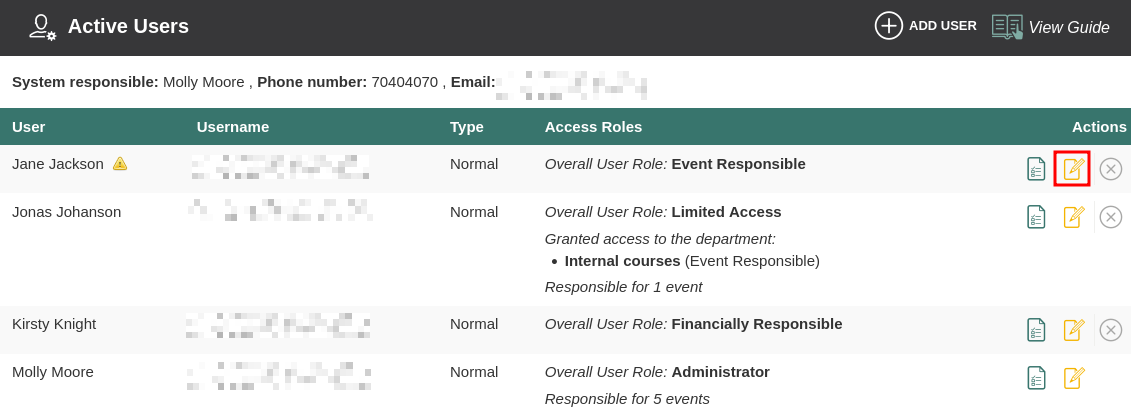
If you want to edit a user, click on the edit icon next to the user. Here you can edit the user's information and change access in general or in one or more departments.
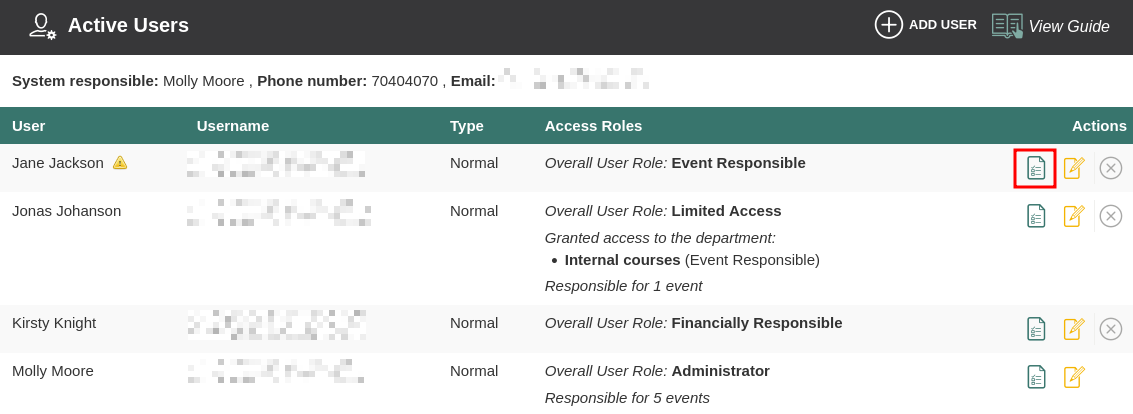
You can see the status of a user by clicking the green status icon. Here you can see the user's details, resend a user invitation or reset the user's password, and see when the user was last logged in.
We've made a series of videos showing you how to use EasySignup.
Watch introductory videosWhether you are a participant or an organizer, some of the questions you might have about the IT-system are answered here.
Read the answers
Mette Jellesen and Jacob Thomsen
Support and Communication