How to create additional choices, e.g. accommodation, choice of workshop, meals or transport

An additional choice is a choice, the attendee must or can make along with their registration. It could be a choice of workshop, transport, accommodation etc., where attendees can choose from a set of options. You can create both free additional choices and additional choices that cost something.

See our how-to-video where we explain and show how you use this feature. 
Below the video you will find a step-by-step guide with text and pictures.
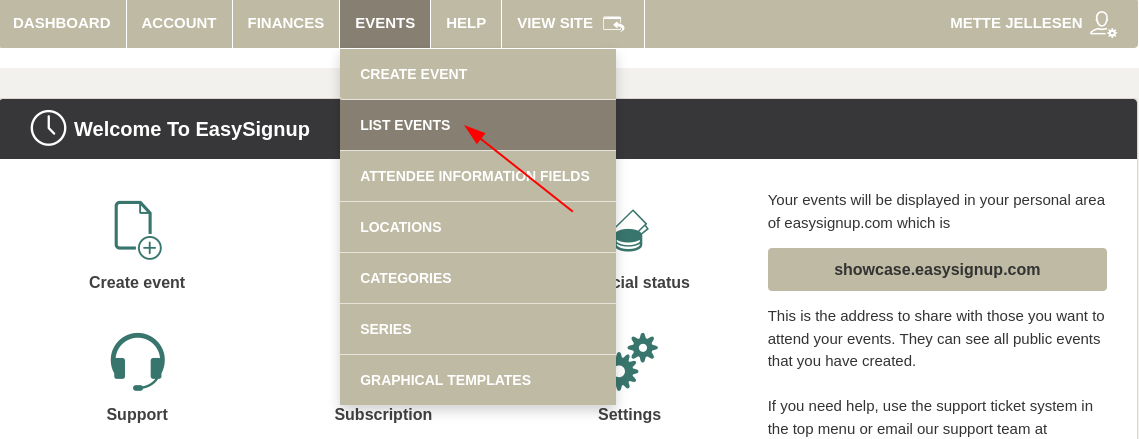
 

  • Access the list of events by clicking Events -> List events.
  • Create additional choices on the page, where you edit the event.
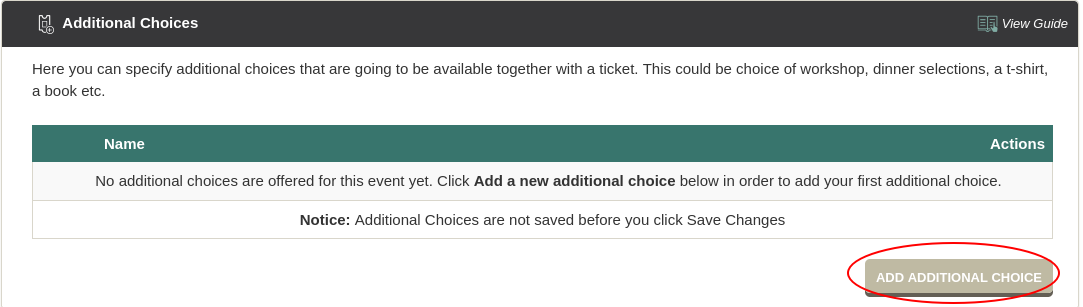
  • Find the section "Additional Choices" under the tab "Tickets" and click "Add additional choice".
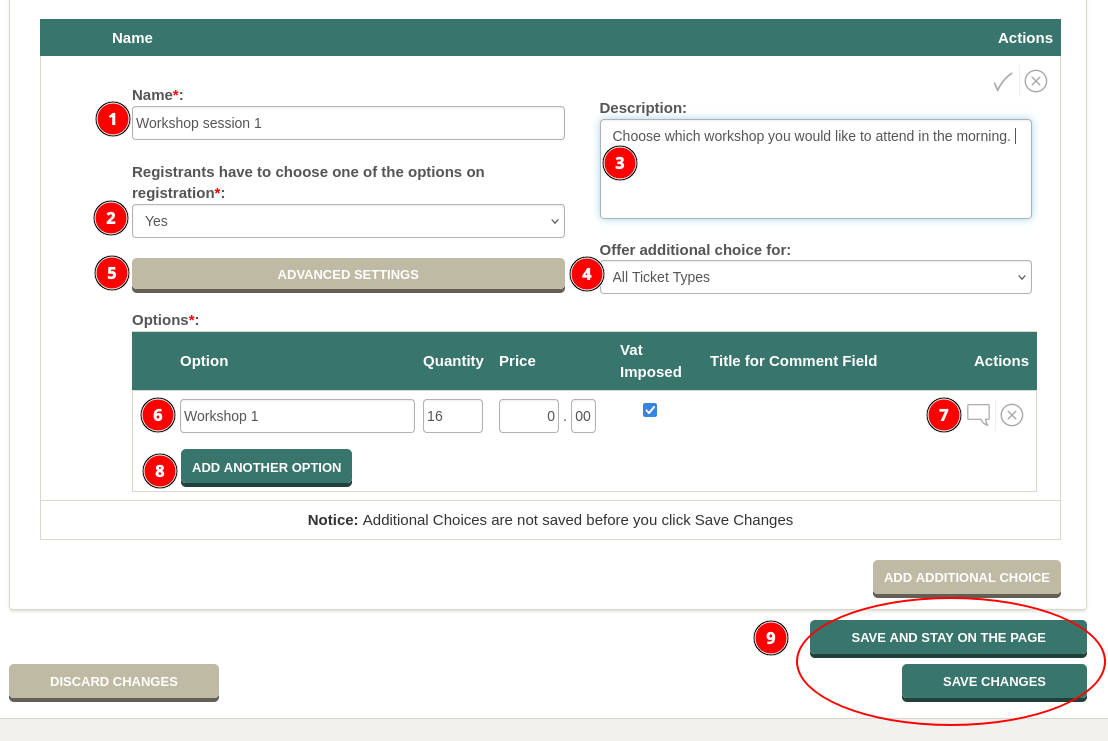
  • Now you can enter information about the additional choice.
  1. Name the additional choice, e.g. "Workshop session 1".
  2. Select "Yes" if it's mandatory for the attendee to select an option. Select "No" if the additional choice is optional.
  3. Enter a description if needed.
  4. Select whether to offer the additional choice to all tickets types or just some. Choosing "All Tickets Types" will also include ticket types created after the additional choice is saved.

    If you select "Specific Ticket Types" you must tick the ticket types that should have the additional choice offered. 
  5. Click "Advanced Settings" if you want to present the additional choice only when people register a certain number of persons, e.g. offer "double room" when 2 persons register together.
  6. Enter options, quantity and price. 
  7. To give the attendees the opportunity to write a comment to an option, click on the small speech bubble to the right and give the input field a title, e.g. "Enter dietary needs" to the option "I will attend the dinner."
  8. Click "Add another option" for each option you need.
  9. Click "Save changes" at the bottom on the page, when you are done.

People are now presented the additional choices when registering for your event.
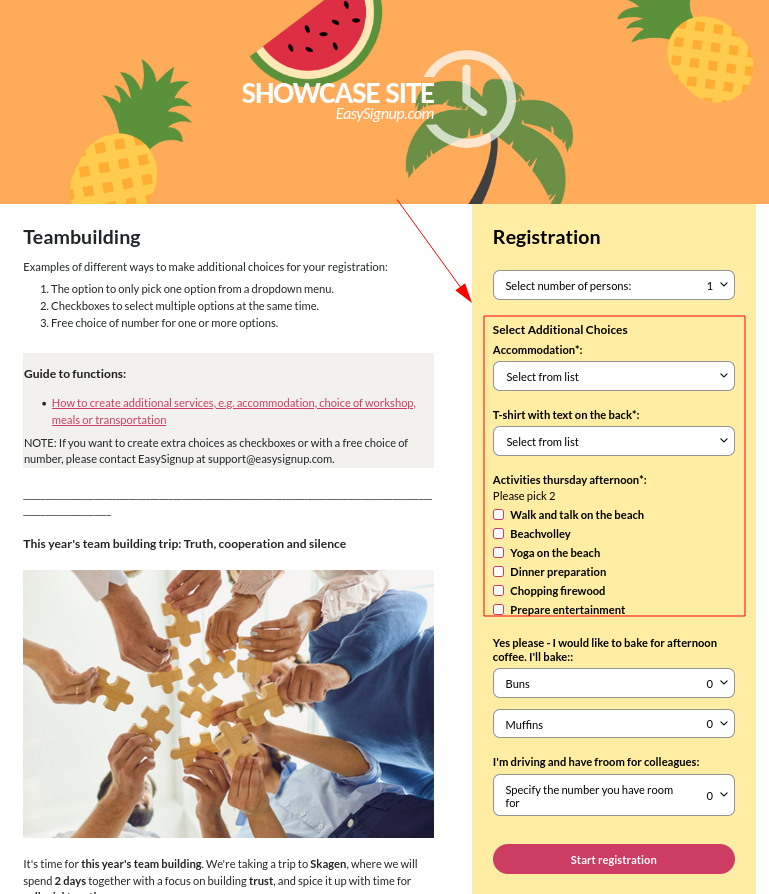
Experience the example above here. 

Introductory Videos

We've made a series of videos showing you how to use EasySignup.

Watch introductory videos

Frequently Asked Questions

Whether you are a participant or an organizer, some of the questions you might have about the IT-system are answered here.

Read the answers

Support - weekdays
9:00 AM - 4:00 PM CET

Mette Jellesen and Jacob Thomsen
Support and Communication

support@easysignup.com

Get in touch

You must fill a name.
You entered an incomplete or invalid email.
You must fill a subject for the message.
You must fill out a message.

Organizations also using EasySignup