How to create an attendee information that is hidden for your attendees

If you need to add a note about your attendees, that you don't want them to see, you can create an attendee information that is hidden from your attendees. 

Create a hidden attendee information

  • Start by finding the event in the list of events and click on the yellow icon to edit: 


  • Go to the tab "Registration":


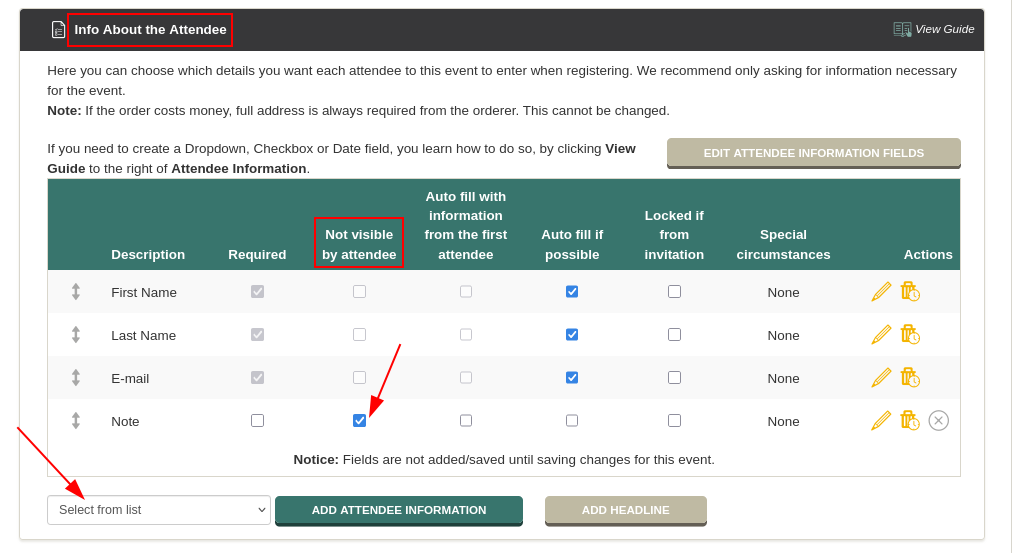
  • Find the section "Info About the Attendee":

  • Find the column "Not visible for attendee" and check the attendee information you want to hide for the attendees.  

    If the attendee information is not yet added, you can add a new attendee information by selecting it from the list with the selectable attendee information. Select "Add new" at the bottom of the list to create a new attendee information. 


  • Approve the updated terms of registration and save the changes in the bottom right corner. 


Fill out a hidden attendee information

You will now have the option to fill out the hidden attendee information in your list of registered attendees, which you will find in the event status page. 

  • Start by clicking the title of the event or the status icon in the list of events to go to the event status page: 


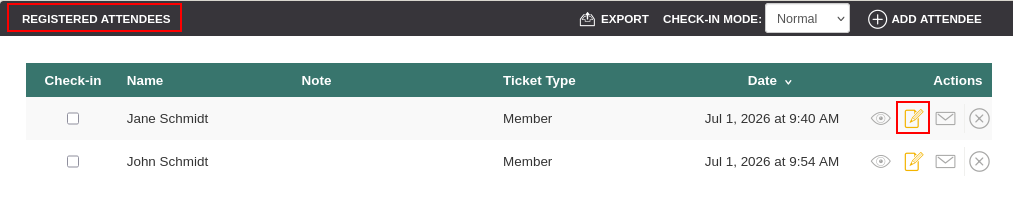
  • Then find the section "Registered Attendees"

  • Find the attendee for whom you want to fill out the hidden attendee information and click the icon the edit the attendee: 


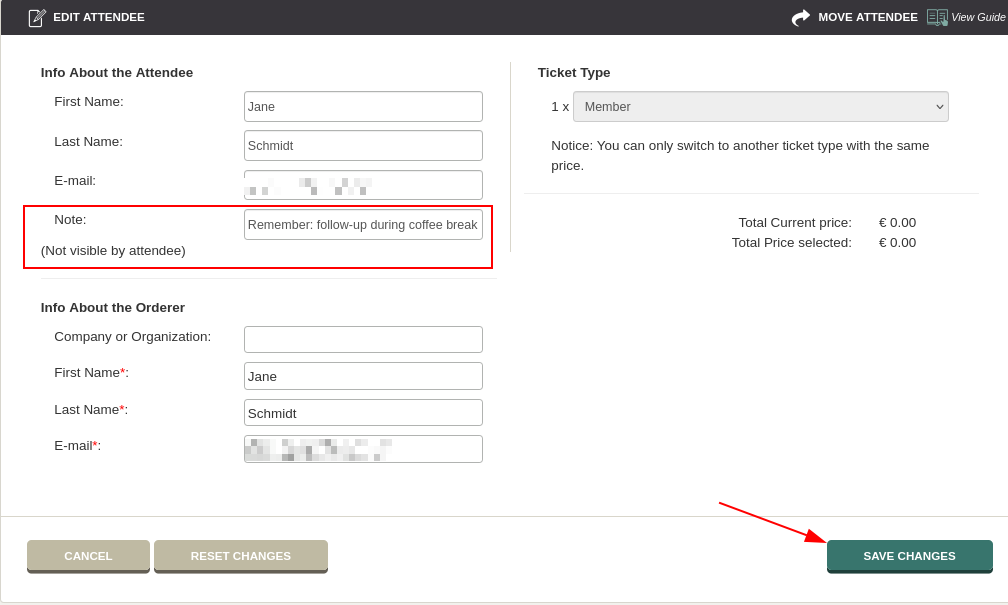
  • You can now fill out the hidden attendee information. Click "Perform changes" in the bottom right corner to save the change and click "Perform" in the following window to confirm saving the change. 


Introductory Videos

We've made a series of videos showing you how to use EasySignup.

Watch introductory videos

Frequently Asked Questions

Whether you are a participant or an organizer, some of the questions you might have about the IT-system are answered here.

Read the answers

Support - weekdays
9:00 AM - 4:00 PM CET

Mette Jellesen and Jacob Thomsen
Support and Communication

support@easysignup.com

Get in touch

You must fill a name.
You entered an incomplete or invalid email.
You must fill a subject for the message.
You must fill out a message.

Organizations also using EasySignup